Patient Snapshot
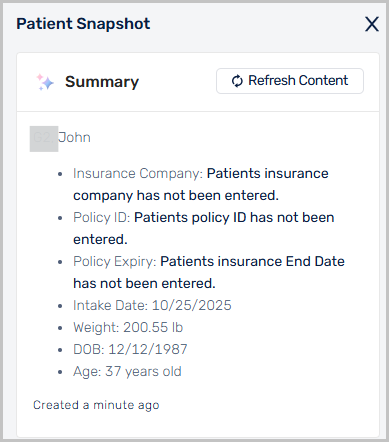
You can view the Patient Snapshot from any patient list, such as the Patients > All Patients or the HST Scheduler > Waitlist. This summary shows key details in one place. Instead of switching between tabs, staff can see:
patient information such as age, weight and insurance
direct links to related details like notes, documents, timelines and insurance authorizations.
The Patient Snapshot helps to reduce the need to recheck records, helps prevent missed information and supports a smoother review process.
From the patient list, double-click a patient.
The Patient Snapshot displays on the right of the screen.
From the Patient Snapshot pane, click Refresh Content to ensure the latest information is displayed.
In the Notes section:
View patient notes.
Click Add note to create a new patient note.
Click the download icon (
 ) to download a PDF of the Notes Summary.
Click the expand icon (
 ) to open Notes in a new window.
In the General Information section, view key patient details.
In the Insurance section, view the patient's insurance policies.
In the Pre-authorization Status section, view the patient's insurance authorization status.
In the Questionnaires section, view the status of questionnaires assigned to the patient.
In the Documents section:
View documents uploaded to the patient's profile.
Click Upload documents to add new documents.