Neurovirtual integration
Use BWAnalysis to manage polysomnogram (PSG) studies. You can import, review and score PSG data from BWAnalysis in the SDI.
Ensure the technician's workstation has the SDI and BWAnalysis installed. This setup is typically completed by the customer support team.
Right-click the SDI system tray icon and select Settings.
From the AST tab, click Add AST Sleepware.
From the Device type list, select BWAnalysis and click Save.
SDI fills in the Data Integration Location and Report Location fields.
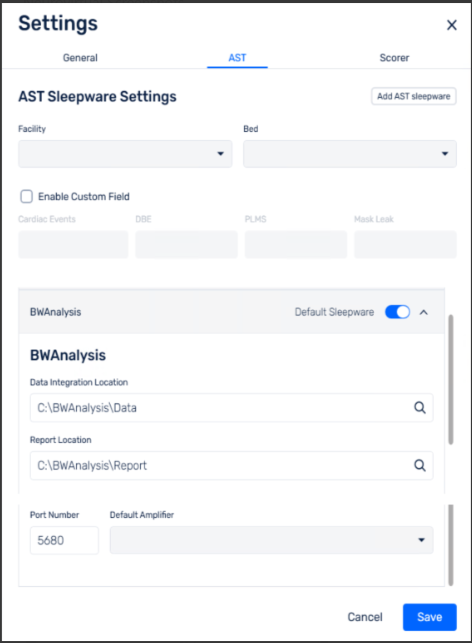
Set the Port Number and Default Amplifier.
Click Save.
Start the sleep study on the workstation where BWAnalysis and SDI are installed and set up.
Go to Scheduler > AST, and click the patient's appointment in the calendar.
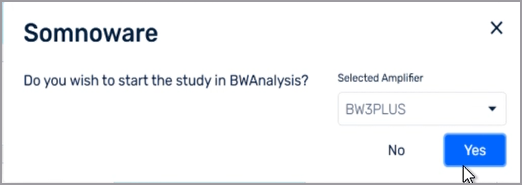
Click Start Study and, when prompted, click Yes to launch BWAnalysis.
In the Clinical Information window, make any changes and click Next.
BWAnalysis opens and the SDI toolbar displays in the top-right corner.
In the BWAnalysis application, start the sleep study, then start the recording.
To add tech notes during the study, see Technician workflow: Add tech notes.
When the study is complete, stop the study and recording in BWAnalysis.
From the SDI toolbar, click Complete study.
If the study requires scoring, in the Complete study window, from the Scoring status list, select Upload study for scoring.
If the study is scored, from the Scoring status list, select Scoring complete (upload study to physician for interpretation) and from the Matching Acquisitions for this patient section, select the study.
Click Complete study.
To upload a scored study, see Technician workflow: Upload a scored study for next steps.
To score the study in Somnoware, see Scorer workflow: Score uploaded study for next steps.
Follow these steps to add tech notes during the sleep study.
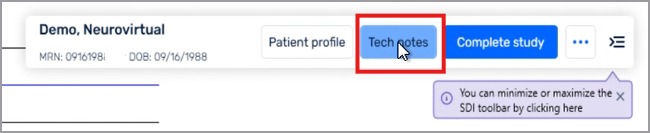
To add tech notes during the study, in the SDI toolbar, click Tech notes.
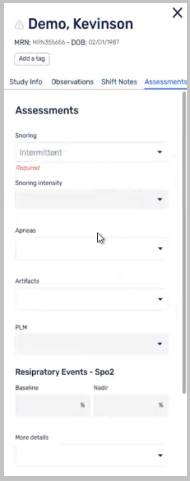
From the right pane, use the Study Info, Observations, Shift Notes and Assessments tabs to add study details.
Somnoware displays the information you add to the Observations and Assessments tab in the interpretation report for physicians to view and edit.
Click Ok.
Generate the scored report before you upload the study.
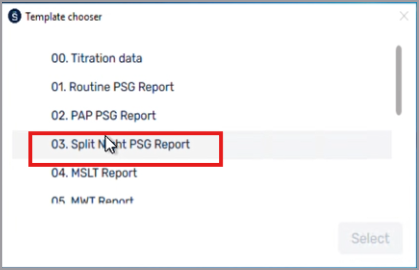
In the Template chooser window, select the report template and click Select.
Somnoware displays the report in the SDI report preview window.
In the preview window, do one of the following:
Click Proceed to continue.
The tech note opens for review and upload progress is displayed.
Click Generate new report to create a report using a different template.
To view the study upload progress, in the system tray, click the SDI icon and select In progress.
Score the study in Somnoware.
Hover over the Manager Module (
 ) and select Study Manager.
From the AST tab, go to Acquisition > Pend. Scoring.
Next to the study, in the Actions column, click the View Tracing icon.
In BWAnalysis, score the study.
After you score the study, in the SDI toolbar, click Save & Generate.
Somnoware displays the report preview.
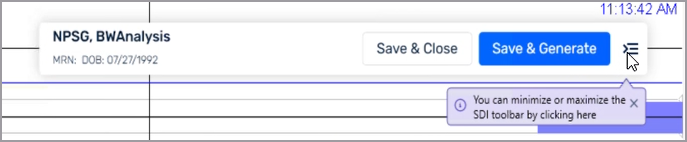
From the SDI toolbar:
Click Save & Close to complete the scored study.
Click Start Over to generate a new report or score the study again.
Hover over the Manager Module (
) and select Physician Manager.In the Physician Manager submenu, click Interpreting > Pend. Interpretation.
(Optional) To review raw study data and score it again:
Next to the study, in the Actions column, click the View Tracing icon.
Somnoware opens the study in the SDI guided panel.
After you scored the study, click Save & Generate.
Somnoware displays the report preview.
Click Save & Close.