Configure remote server access
Set a user’s Remote server access when they need access to cloud-based or locally stored sleep studies.
Go to Configuration (
 ) > Users.
From the Actions column, click the More icon (
 ).
).Select Remote server access.
To enable cloud-based access:
Under View PSG, turn on Enable remote access.
Enter the user's Login and Password for cloud access.
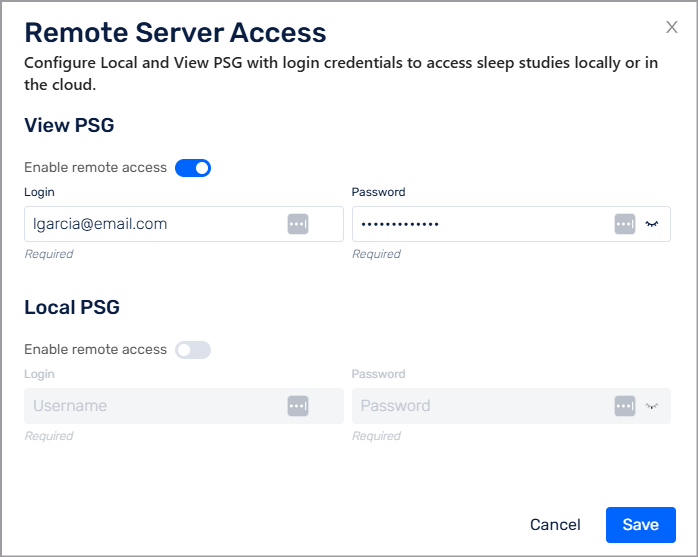
To enable access to locally stored studies:
Under Local PSG, turn on Enable remote access.
Enter the user's Login and Password for local access.
Click Save.