Configure diagnoses
Somnoware provides a library of sleep medicine ICD-10-CM diagnosis codes that physicians can include in interpretation reports and DME orders. You can enable or disable individual diagnoses and create custom diagnoses to meet your reporting needs.
Open physician preferences:
Administrators: Go to Configuration > Physicians. Next to the physician whose preferences you want to configure, click the Preferences icon (
 ).
Physicians: From the top navigation bar, select the arrow next to your profile icon, then select My Profile > Sleep Preferences.
From the Report Builder tab, click Diagnosis.
Turn individual diagnoses on or off to control which diagnoses are available in reports.
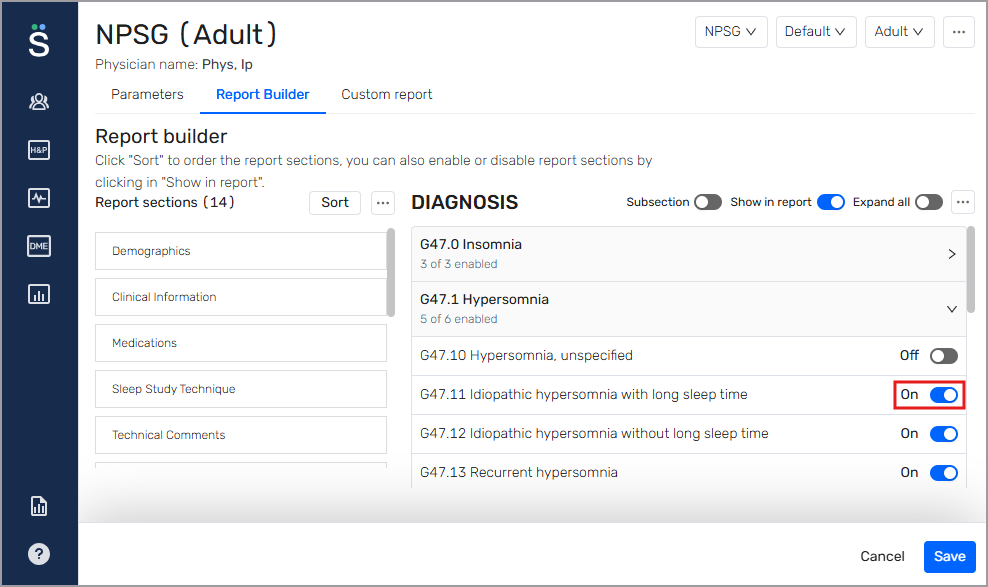
To include the Diagnosis section in interpretation reports, ensure Show in report is enabled.
Click Save.
Create a custom diagnosis
Add a custom diagnosis to make it available for selection in interpretation reports.
Open physician preferences:
Administrators: Go to Configuration > Physicians. Next to the physician whose preferences you want to configure, click the Preferences icon (
).Physicians: From the top navigation bar, select the arrow next to your profile icon, then select My Profile > Sleep Preferences.
From the Report Builder tab, click Diagnosis.
Click the More icon (
 ) and select Add custom.
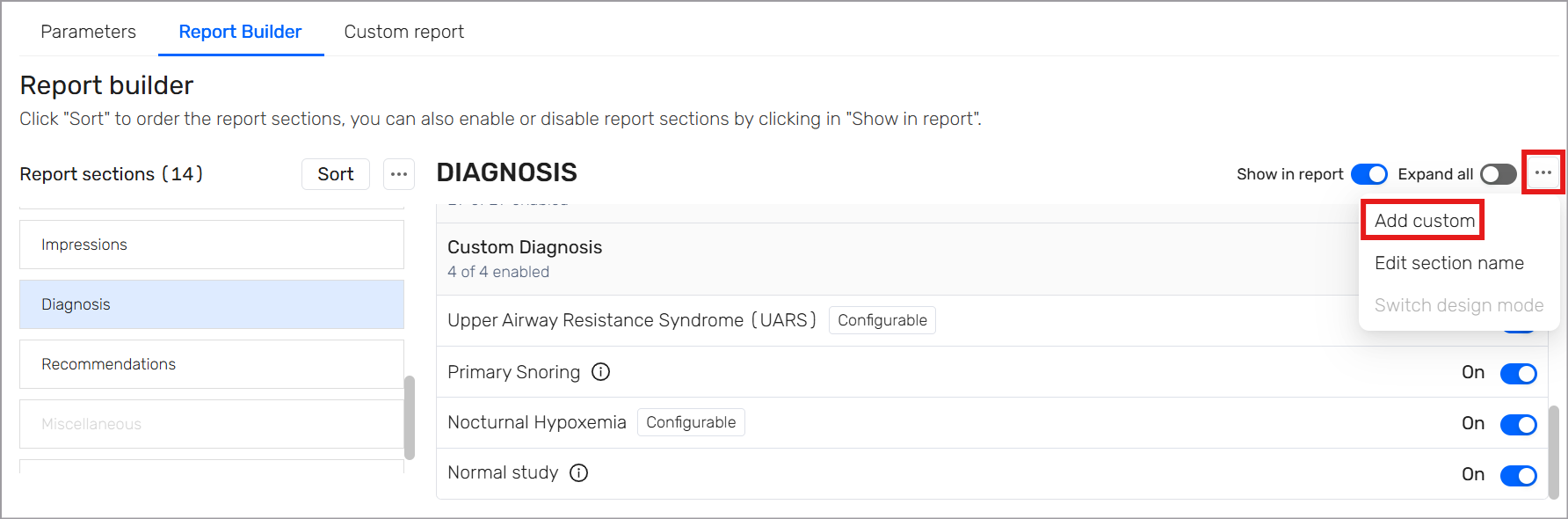
In the Custom Diagnosis section, enter the diagnosis name.
Click Add.