Onera Sleep Test System integration
Connect the Onera Sleep Test System (STS) to Somnoware to order studies, track fulfillment and review completed PSG data.
Configure the Onera STS integration for each region or facility that uses Onera STS. You can configure a different endpoint URL for each facility that connects to a separate Onera STS environment.
Before you begin:
Obtain the endpoint URL, clinic ID and API key for the Onera STS environment.
Important
You must configure an endpoint URL for each facility that uses the Onera STS integration. If an endpoint URL is not configured, Somnoware prompts users to update the Onera STS configuration before they perform supported device actions.
Go to Configuration > Facilities.
Next to the region or facility you want to configure, click Edit.
From the Cloud Integration tab, expand the Onera STS section.
Click Add cloud integration.
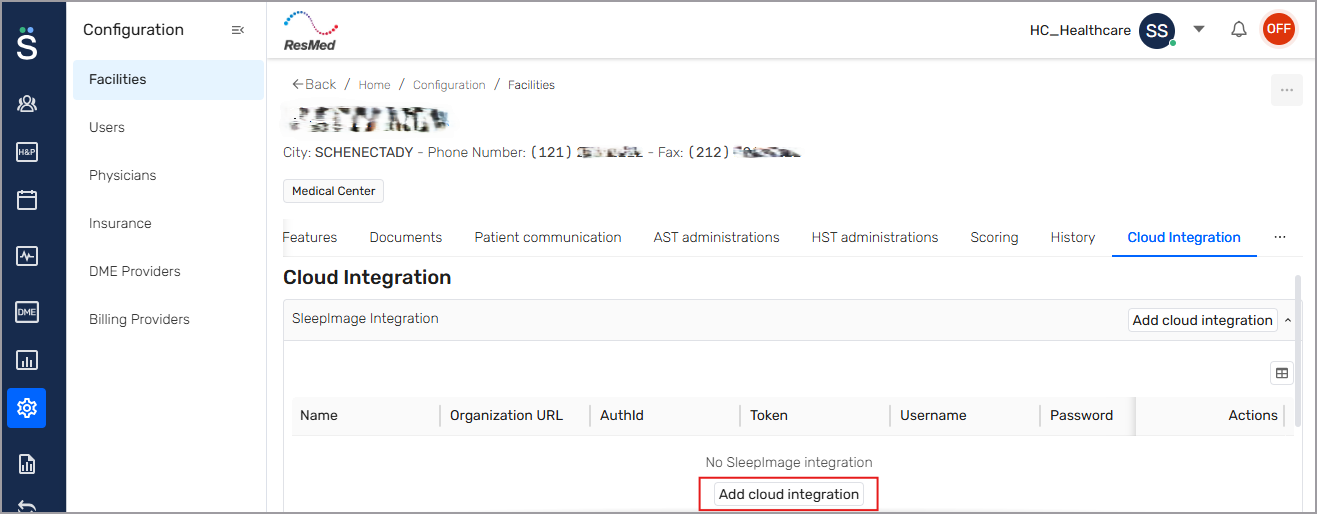
Enter the following information:
Clinic ID: The clinic ID for the Onera STS environment.
API key: The API key for the Onera STS environment.
Endpoint URL: The URL for the Onera STS environment. This field is required and must contain a valid URL.
Click Save.
Create an Onera STS order and send it to the vendor for fulfillment.
Before you begin:
Ensure the patient's email, phone number, city and zip code are up to date in the Patient Profile.
Go to Scheduler > HST.
Click the patient in the calendar.
Click Checkout Device.
From the Device Type list, select Onera STS.
Click Initialize / Checkout.
Enter required details.
Select the Head Patch Size.
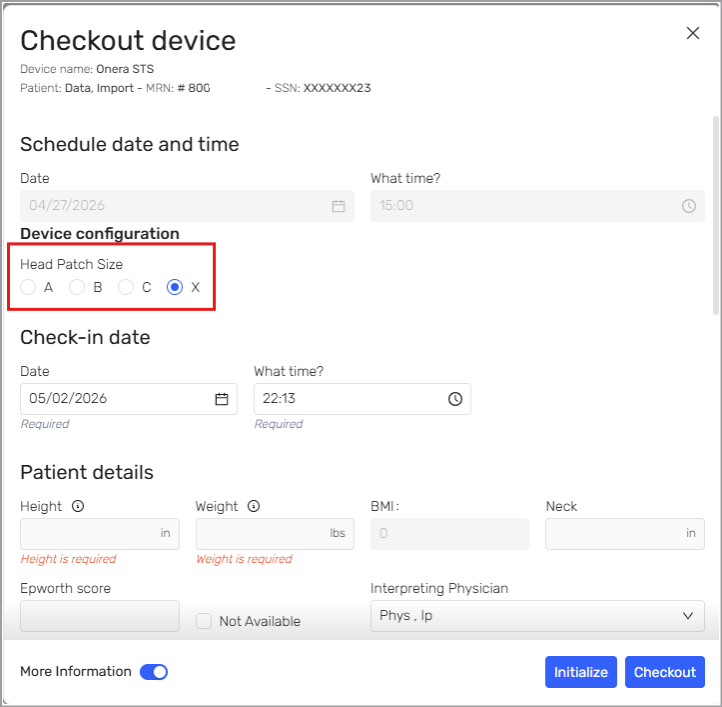
Click Initialize.
Somnoware does not check out the device in Scheduler. It sends the order to Onera. Onera automatically creates the patient in its platform under the organization linked to the Somnoware facility. After Onera receives the order, its dispensing team sends the device to the patient.
View the Onera order status in Somnoware.
Go to Study Manager.
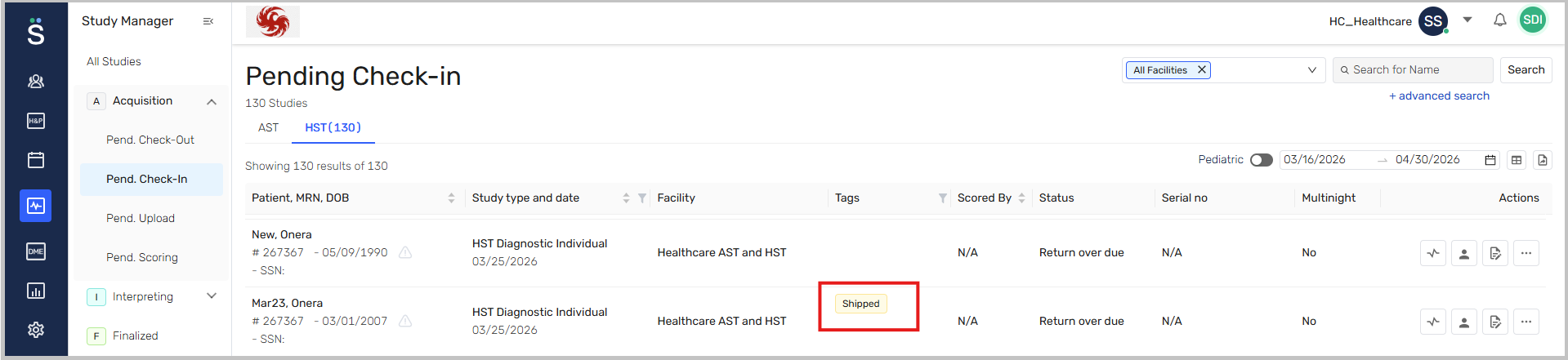
From Acquisition > Pend. Check-In, find the study.
From the Tags column, review status tags (for example, Shipped or In progress).
Cancel an Onera order to stop study processing.
Go to Scheduler > HST.
Click the patient in the calendar.
From the right-side panel, click the More icon.
Select Check-in as bad data.
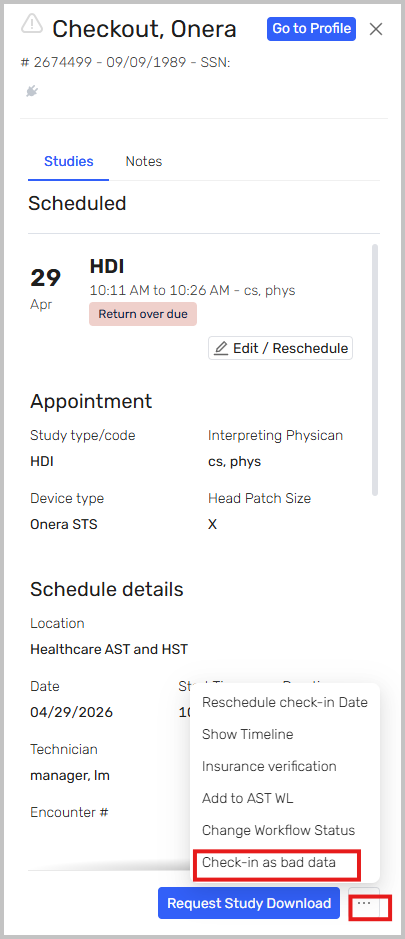
In the confirmation window, click Yes.
After Onera processes the patient's sleep study, Somnoware imports the completed study. If the import is delayed, you can request it manually.
Go to Scheduler > HST.
Click the patient in the calendar.
From the right-side panel, click Request Study Download.
Onera automatically scores all sleep studies. If needed, you can overscore the study in the Onera environment.
Hover over the Manager Module (
 ) and select Physician Manager.
In the Physician Manager submenu, click Interpreting > Pend. Interpretation.
Next to the study, in the Actions column, click the View Tracing icon.
The Onera environment opens and shows the scored report with all details.
Click the Raw data icon to view the raw study.
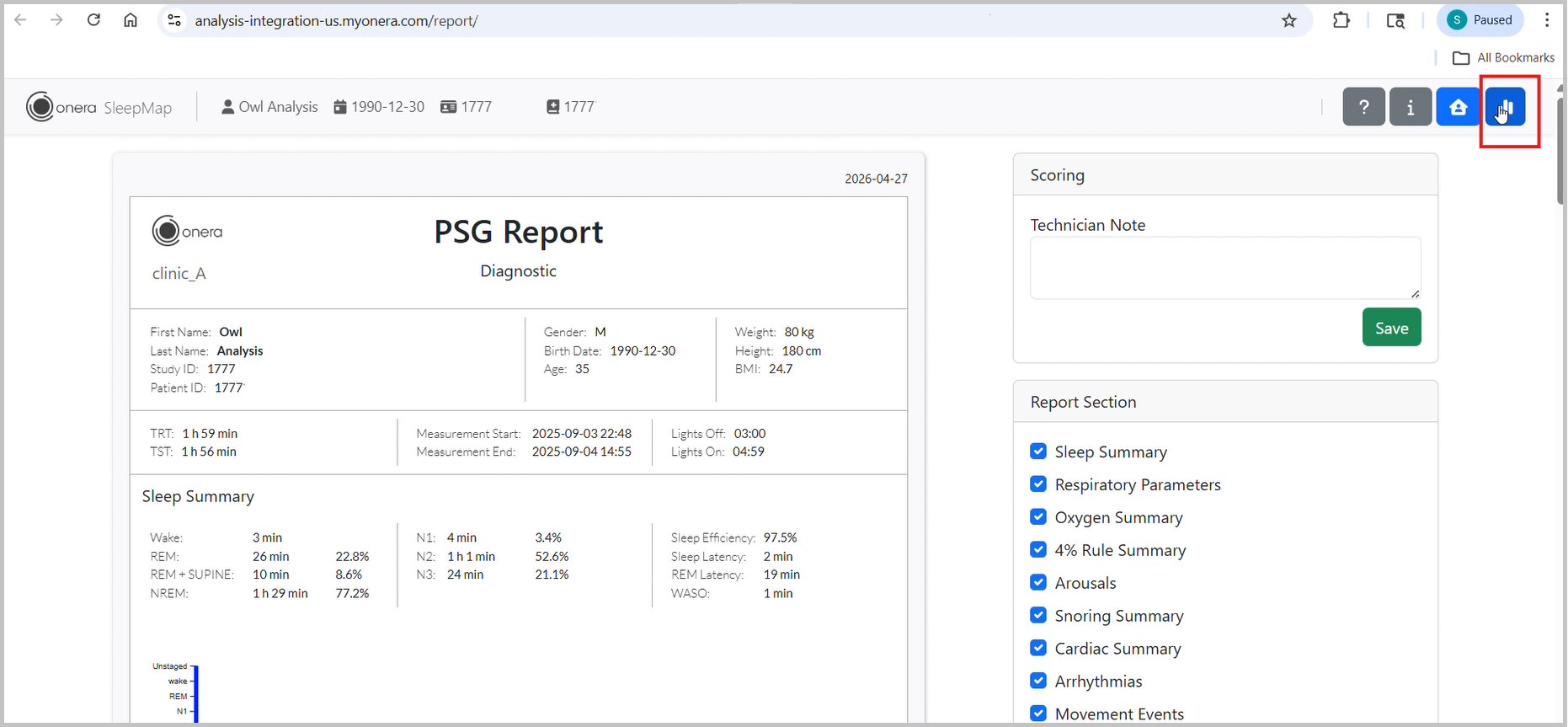
If required, overscore the study and wait for the report to update.
Review Onera study data and finalize the report.
Hover over the Manager Module (
) and select Physician Manager.In the Physician Manager submenu, click Interpreting > Pend. Interpretation.
Next to the study, in the Actions column, click the Interpretation icon.
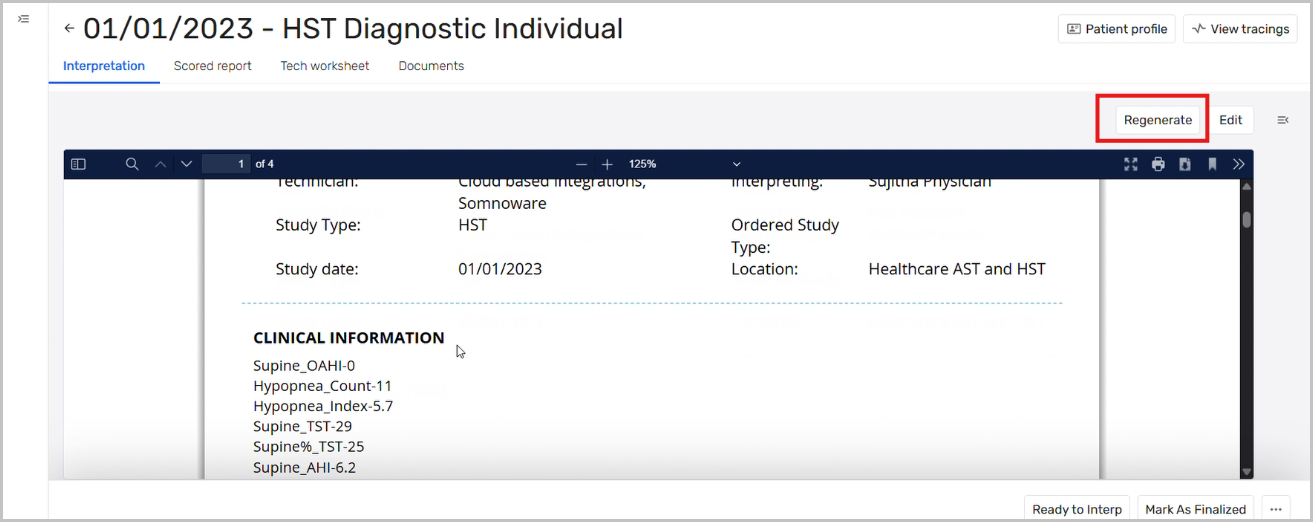
If the study was overscored, click Regenerate to update the report.