Interpretation report editor
Use the toolbar in Interpretation reports to format and update report content. The interpretation report editor includes tools for text formatting, lists, tables, dictation and search.
Highlight the text or click the Select all icon (
 ) in the toolbar to highlight all the text in the report.
Use the toolbar to change the font type, size and style.
Click Highlight Sections in the toolbar. This outlines each section so you can seem them clearly.
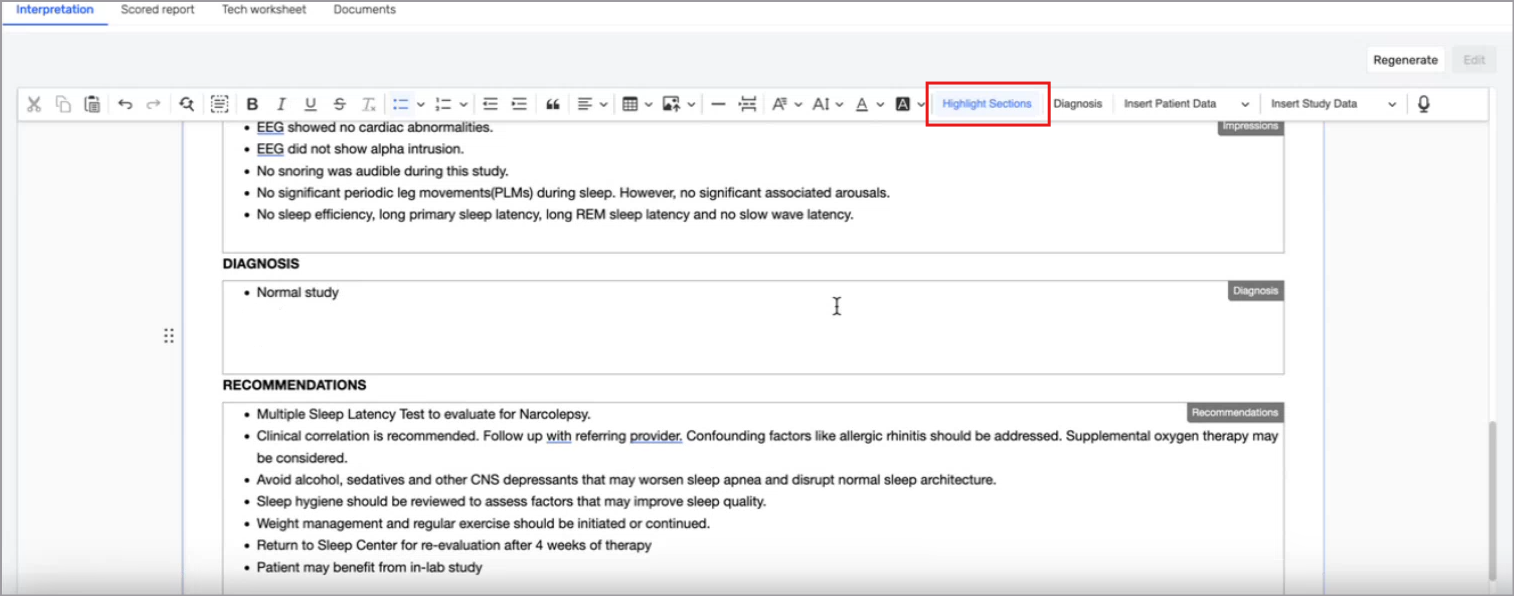
Highlight all the text in the section.
Drag the section to the desired location in the report.
Click the Find and replace (
 ) icon in the toolbar.
Enter the text you want to find.
Enter the replacement text.
(Optional) Expand Advanced options and enable:
Match case: Finds text that matches upper and lowercase letters.
Whole words only: Finds complete words only.
Click Replace or Replace all.
Place your cursor where you want to add the list or select the text.
Click the Bulleted List or Numbered List icon in the toolbar.
Use the indent and outdent icons to create or remove sub-items.
Place your cursor where you want the table.
Click the Insert table icon in the toolbar.
Select the number of rows and columns.
Adjust the table by dragging column borders or using the table options.
Place your cursor over the red dot at the bottom of the report and click the Proofread in dialog icon.

Review suggestions in the panel that opens in the top right corner.
Use the left and right arrows to move through suggestions.
Select a suggestion to update the text or ignore it.
Click the three-bar menu icon to adjust settings, such as automatic spelling correction or ignored words.
Do one of the following:
In the report, click the word underlined in red and click the Add word icon.
In the proofread dialog, click the three bar icon, select Go to Dictionary, enter a new word and click Add.
Use the dictation tool to enter text into an interpretation report by voice. You can use your computer microphone or a supported PowerMic™ handheld microphone.
The dictation tool supports US English only.
Before using the dictation tool with a supported PowerMic device, ensure:
you have one of the following supported browsers installed:
Microsoft Edge
Google Chrome 89 or later
Opera
your microphone is connected and recognized by the computer
you allow the browser to access the microphone
you use a supported PowerMic 3 or PowerMic 4 device.
Place your cursor in the report where you want to add text.
Click the Start transcription icon in the toolbar.
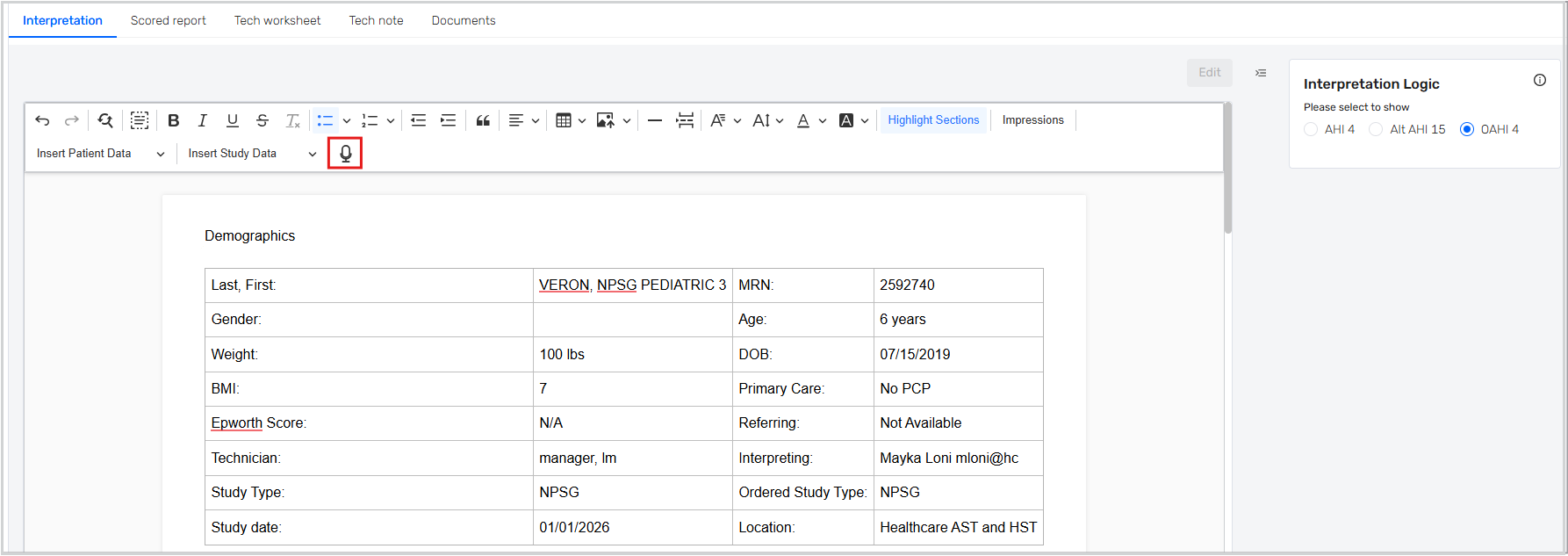
Speak to add text to the report.
Click the icon again to stop dictation.
Review the text and correct any mistakes.
Each time you connect a PowerMic device, pair it with your browser before using dictation.
Plug the PowerMic into your computer.
In Somnoware, from the interpretation report, click the Start transcription icon in the toolbar.
In the pairing prompt, select the PowerMic device and click Connect.
When the device is connected and ready to start dictation, a green dot displays next to the Start transcription icon and dictation begins automatically. A red dot means the PowerMic is detected but not paired. For more information, see The PowerMic is connected but dictation doesn't work.
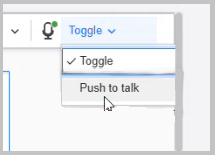
Use Toggle mode to start and stop dictation using either the Start transcription icon or the PowerMic record button.
From the dictation mode list, select Toggle.
Place your cursor in the report where you want to add text.
To start dictation, do one of the following:
Click the Start transcription icon.
Press the record button on the PowerMic.
Speak to add text to the report.
To stop dictation, do one of the following:
Click Stop transcription.
Press the record button on the PowerMic again.
Use Push to talk mode to use dictation only while you are holding the record button on the PowerMic device.
Important
A brief delay may occur when you press and hold the record button because Somnoware connects to the transcription service each time dictation starts. Continue holding the record button while you dictate. Wait until all your words display in the report before you release the record button or they will be lost.
From the dictation mode list, select Push to talk.
Place your cursor in the report where you want to add text.
Press and hold the record button on the PowerMic.
Speak to add text to the report.
Release the record button to stop dictation.
Ensure the PowerMic is connected to your computer.
Click the Start transcription icon.
Allow the browser to access the microphone.
When prompted to connect a device, select the PowerMic.
Each time the record button is pressed on the PowerMic device, a brief delay occurs when the application connects to the transcription service.
Depending on your screen size, browser window width and display resolution, the toolbar may wrap onto a second line. This does not impact functionality.